
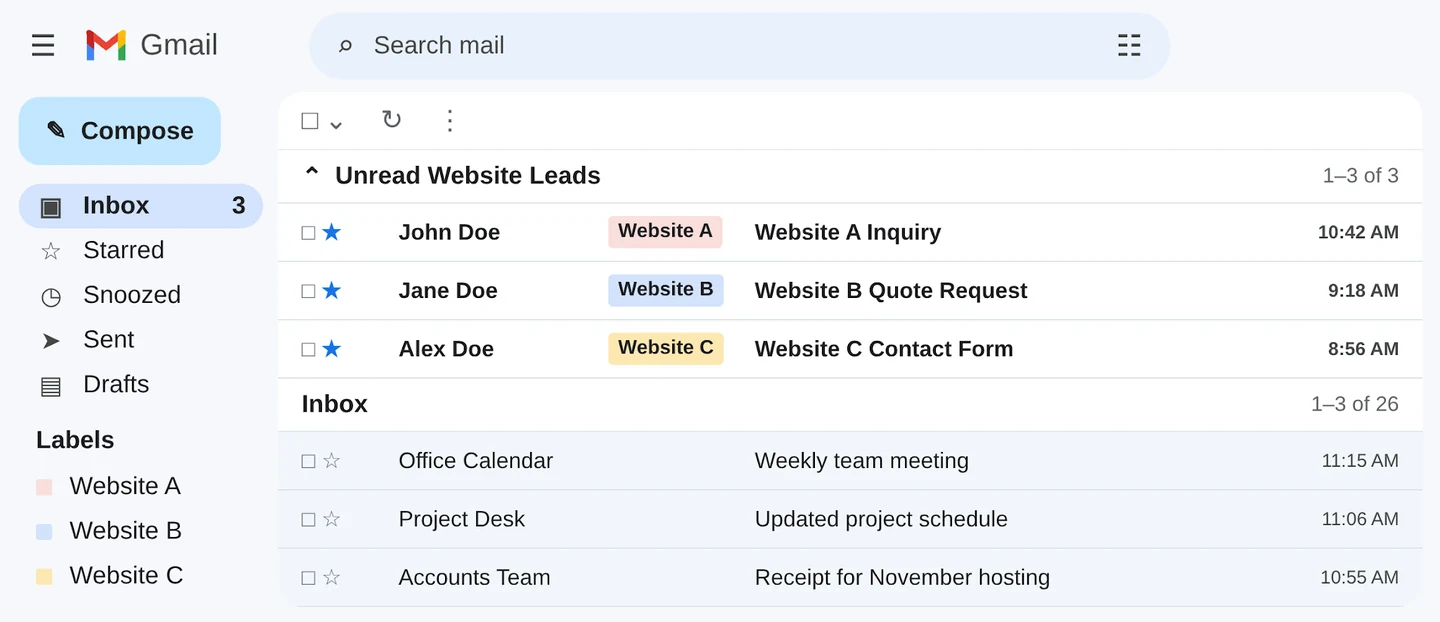
A client was getting inquiries from three websites in one busy Google Workspace inbox. A quote request could land between a calendar invite and a routine update. Every message was there, but the ones he needed to answer quickly were easy to miss.
We set up a section called Unread Website Leads above his regular inbox. New inquiries from all three sites appear together, and a label shows which website sent each one.
1. Create a Gmail filter for each website
Open Gmail on a computer and choose Show search options in the search bar. In the To field, enter the address that receives your form notifications. In Subject, enter the wording your website uses, such as “Website A Inquiry.” Using both fields helps keep unrelated mail out of the leads section.
If you’ve changed the notification subject, use Has the words to match either subject. Leave the Subject field blank and enter a query like this, using your own subject lines.
{subject:"Website A Inquiry" subject:"Website A Feedback"}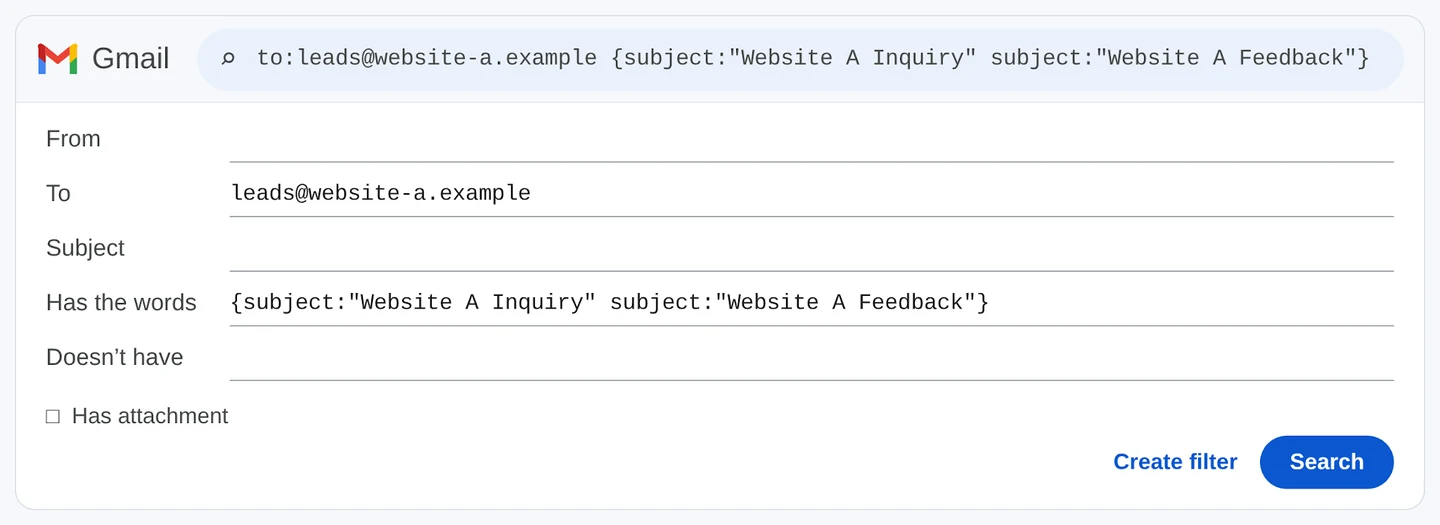
Run the search first and check that it finds the right messages. Then choose Create filter and Apply the label. Use one label per website, such as website-a-leads. Leave Skip the Inbox unchecked, since the search in the next step looks for messages in your inbox. If you want to label earlier inquiries, apply the filter to matching conversations as well.
2. Put unread leads above the regular inbox
In desktop Gmail, open Settings. Under Inbox type, choose Multiple inboxes and then Customize. Add a section named Unread Website Leads, enter the search below with your labels, choose Above the inbox for its position, and save.
in:inbox is:unread {label:website-a-leads label:website-b-leads}The braces tell Gmail to match any label inside them. If you have one website, use this shorter search.
in:inbox is:unread label:website-leads3. Check that your lead appears
Send a test inquiry through each website form. In desktop Gmail, check that the message appears in Unread Website Leads with the right label. When you open it, it drops out of that section and keeps its label, so you can find it again later. If you check mail on your phone, you can open the website label in the Gmail app.
To see how a prospect found the site before sending an inquiry, read how to track lead sources in WordPress.
Google’s Gmail Help covers creating filters and setting up Multiple inboxes.